The UniNotepad app icon

UniNotepad

Your tabs, exactly where you left them.

Next time you open the app

Every tab is back — including the ones you never saved.

Tabs, syntax highlighting, and live Markdown preview in a plain-text editor for Windows, macOS, and Linux — around 3 MB to install.

Download View on GitHub

Latest release · Free · Open source

On a Mac? Try UniFinder — Windows Explorer's feel, without leaving macOS

🧩 Using VS Code? The same Mermaid preview — zoom, drag, custom background — runs right inside your editor.

VS Code Extension

📥 Download

🍎 macOS

⚠️ Run the command below before the first launch

🍎 On macOS — one command is required before the first launch

This app is distributed without Apple Developer notarization. So the first time you open it, macOS blocks it with "UniNotepad is damaged and can't be opened. You should move it to the Trash." The file is not damaged — it is the quarantine attribute macOS attaches to anything downloaded from the internet. Don't delete the app.

  1. Open the downloaded .dmg and drag UniNotepad into your Applications folder.
  2. Open Terminal (Spotlight ⌘ + Space → "Terminal"), paste the line below, and press Enter — it only strips the quarantine attribute. xattr -cr /Applications/UniNotepad.app
  3. Now open UniNotepad from Applications and it launches normally.

You only have to do this once. Run the same line again only if you replace the app with a newer .dmg.

Every link resolves to the latest release automatically. On Windows and Linux, just download and install.

✨ What makes it different

💾 Nothing to save

It records as soon as you stop typing — no "Do you want to save changes?" when you close.

🗂️ Tabs and session restore

Quit, crash, or reboot — your open tabs come back, unsaved notes included. Tab bar with a + button, Ctrl+Tab cycling, right-click to close several at once.

📝 Live Markdown preview

Renders on the right as you type — GFM tables, checkboxes, highlighted code blocks, synced scrolling. Toggle with Ctrl/Cmd+Shift+M and drag the middle divider to set the split — the ratio and zoom are remembered per tab.

🔗 Follow document links

Click a [another doc](./other.md) link in the preview and that file opens in a new tab — with an #anchor on it, right at that spot. Every heading gets an anchor, so a document's own table of contents works, in the app and in the HTML you export. Web addresses still go to your browser; a missing file, a folder, or anything that isn't text is reported with the path it resolved to instead of being opened.

🪟 Open and close each pane

Turn the editor and the preview on or off per tab — full-width preview in this tab, editor only in that one. Hover the top-right corner of a pane for its × button; reopen from the Editor · Preview buttons in the status bar. The layout is remembered per tab too. Since .md and .mmd files are usually opened to be read, they start as preview only.

🧜 Mermaid diagrams

```mermaid code blocks, and whole .mmd files rendered as one picture — flowcharts, sequence, Gantt, class, anything Mermaid 11 draws. A wide diagram grows with the window, and you can zoom a chart on its own or pick its background color.

🖨️ Export the preview

Save the rendered document as a single HTML file, or print it straight to PDF — diagrams come along as images.

📋 Paste the web as Markdown

Copy a chatbot answer or a web page, paste it into a Markdown tab, and the headings, lists, tables and code blocks arrive as Markdown. Other file types paste verbatim, as before — turn it off under Preferences ▸ Editor ▸ Paste HTML as Markdown.

🎨 Syntax highlighting

143 languages, detected from the file name alone.

🌗 Ten themes, light or dark

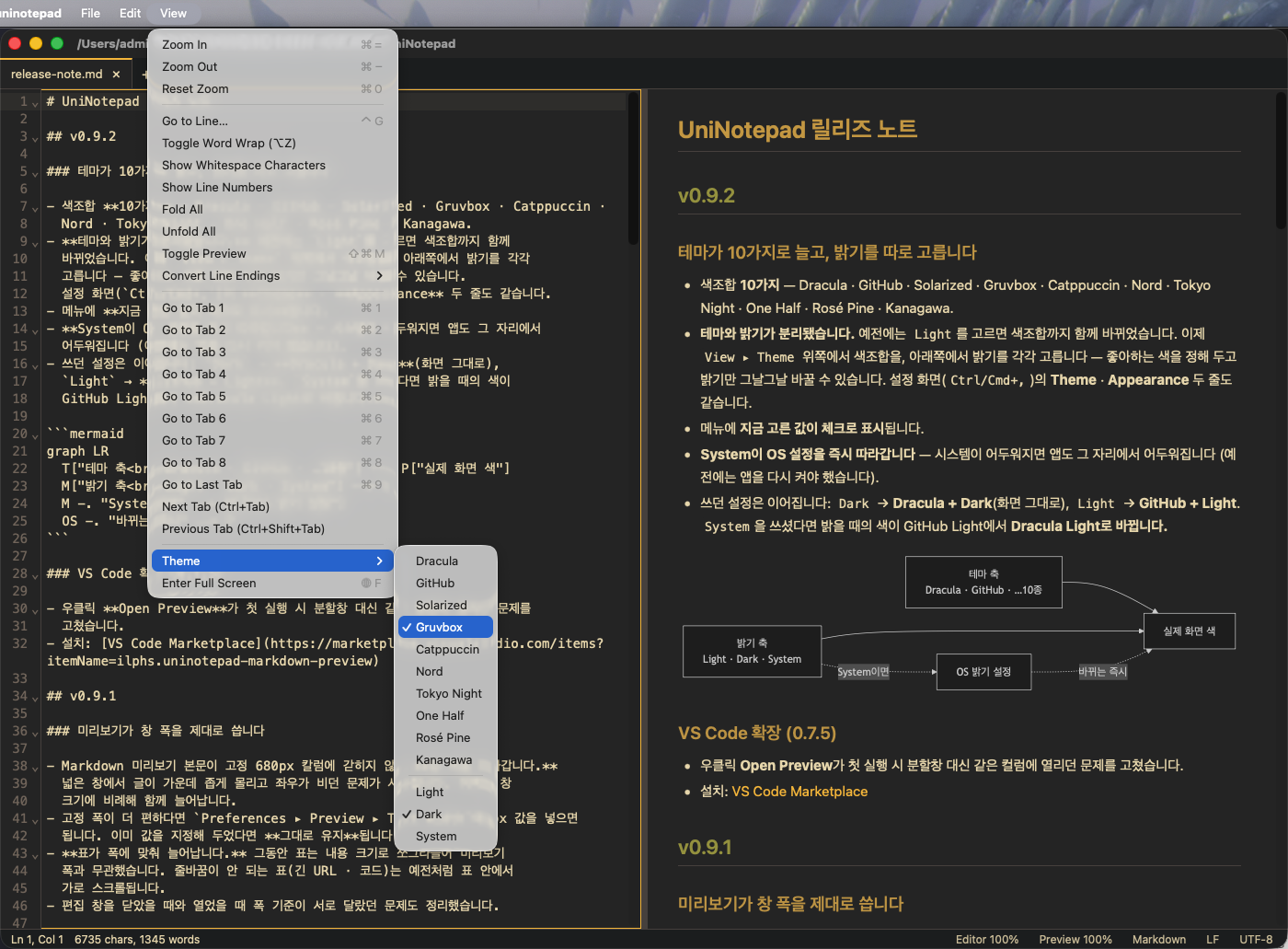
Pick a palette — Dracula, GitHub, Solarized, Gruvbox, Catppuccin, Nord, Tokyo Night, One Half, Rosé Pine, Kanagawa — and its lightness separately under View ▸ Theme. System follows your OS appearance. The editor, the syntax colors, and the Markdown/Mermaid preview all switch together, and your choice sticks across restarts.

✂️ Line tools

Sort, remove duplicate or blank lines, trim whitespace, change case, move lines.

⌨️ Multiple cursors and code folding

Select every occurrence of a word and edit them at once; fold long blocks. Whitespace rendering included.

🌏 Legacy encodings

UTF-8 and UTF-16, plus EUC-KR/CP949, Shift-JIS, GBK, and Big5 — detected and opened correctly. Characters the chosen encoding can't represent are flagged before saving.

👀 External change detection

If another program edits the file while UniNotepad is running, it notices right away — refreshing quietly if you haven't typed anything, asking with a banner if you have.

🗄️ Large files, safely

Files over 10 MB open in a light mode (no syntax highlighting) after a confirmation, so the app never freezes.

⚙️ One place for settings

Font, line numbers, indentation, save options, and theme — all on one screen at Ctrl/Cmd+,.

🔄 Automatic update checks

New releases show up quietly in the status bar — Windows and AppImage builds install from inside the app.

🪶 Lightweight

It uses the OS web view instead of bundling a browser, so the installer is around 3 MB.
🖼 Screens

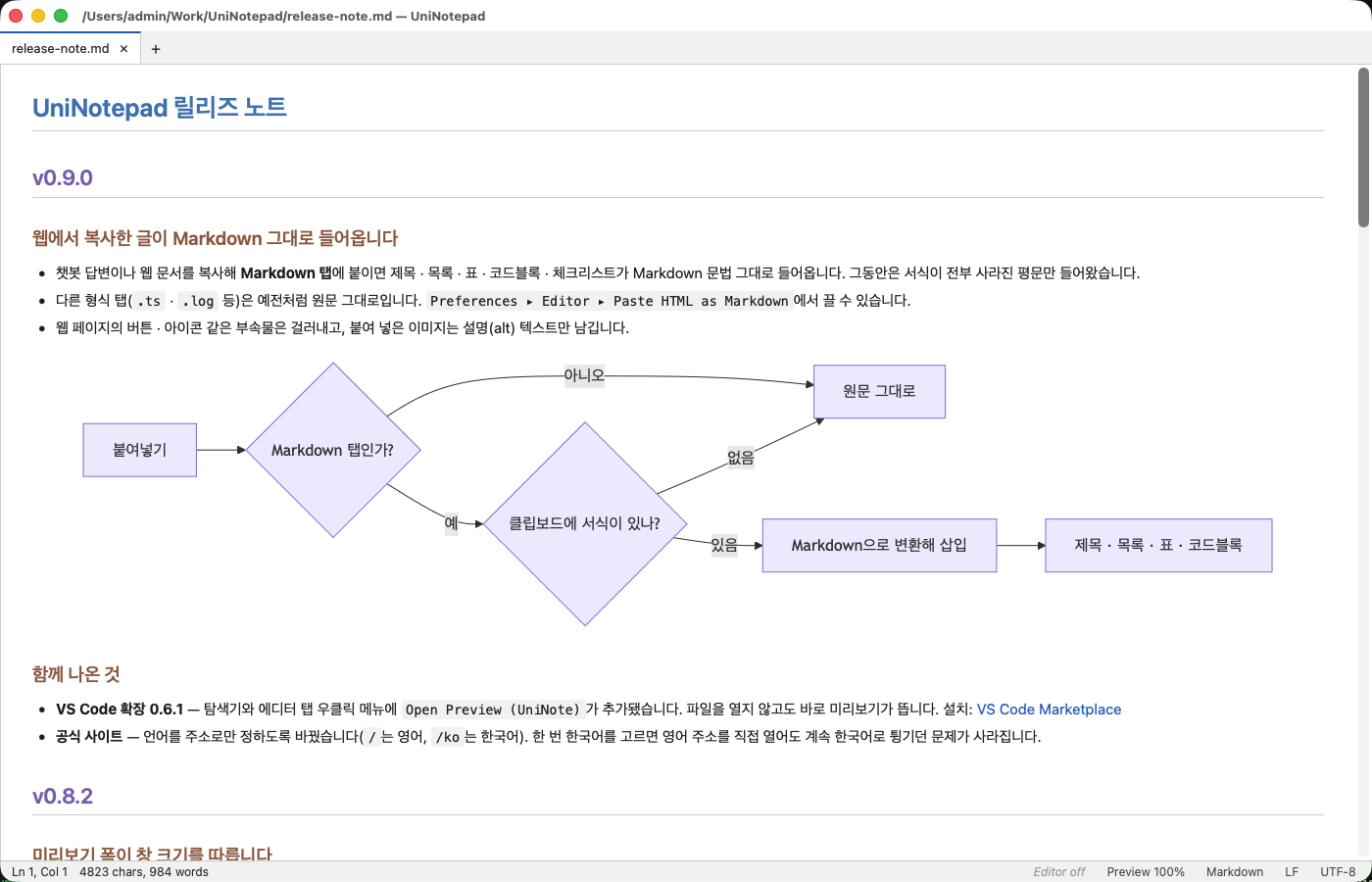
UniNotepad in the light theme with the editor pane closed, showing only the preview
Light theme — the editor pane closed, preview only
The View menu's Theme submenu open, listing ten palettes above a separator and Light/Dark/System below it, with Gruvbox and Dark check-marked
Picking a theme — one submenu, two axes: ten palettes above the separator, lightness below. Check marks show the current pair
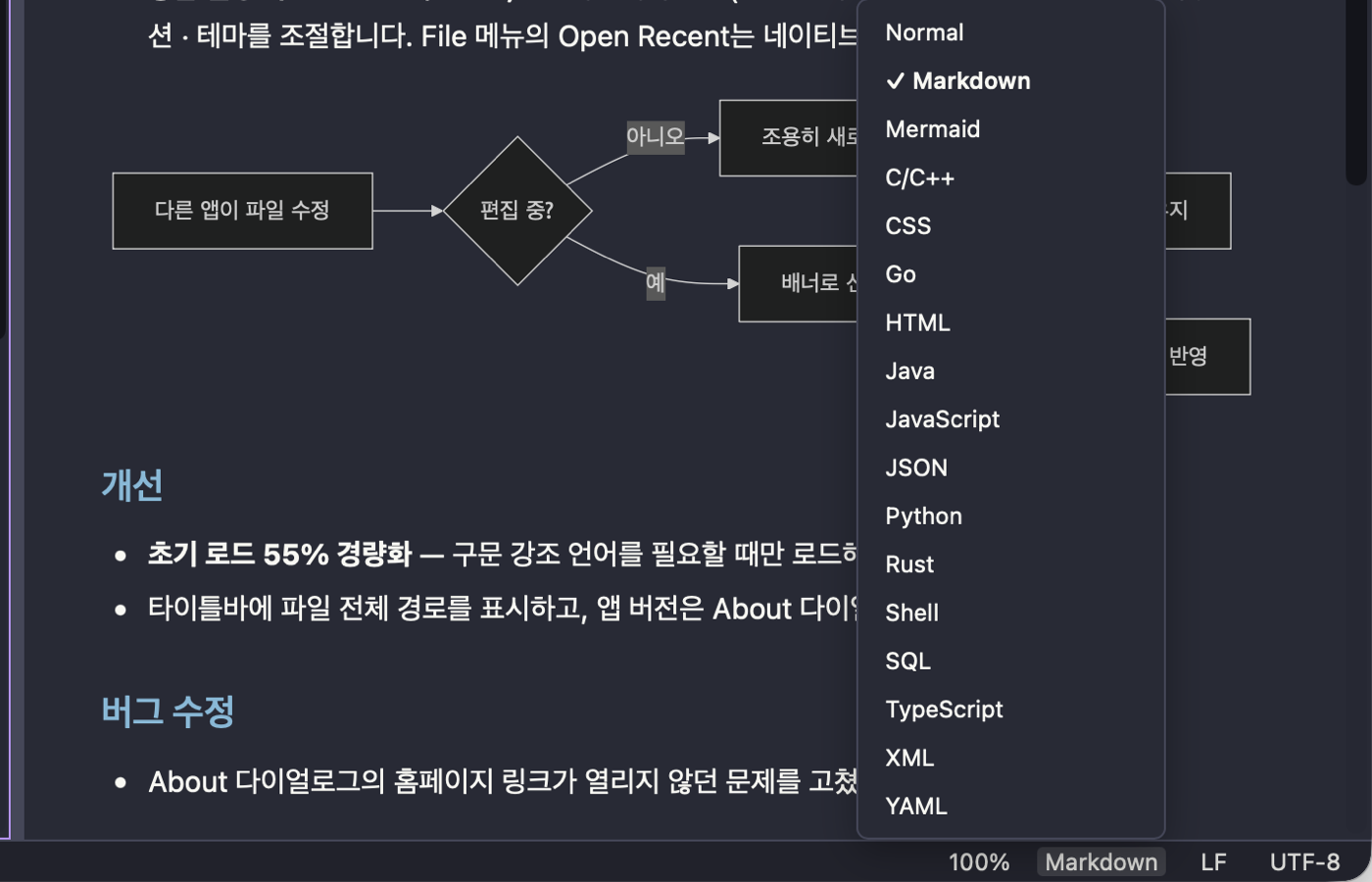
The file type menu in the status bar
File type picker — set an unsaved note to Markdown or Mermaid and the preview opens right away
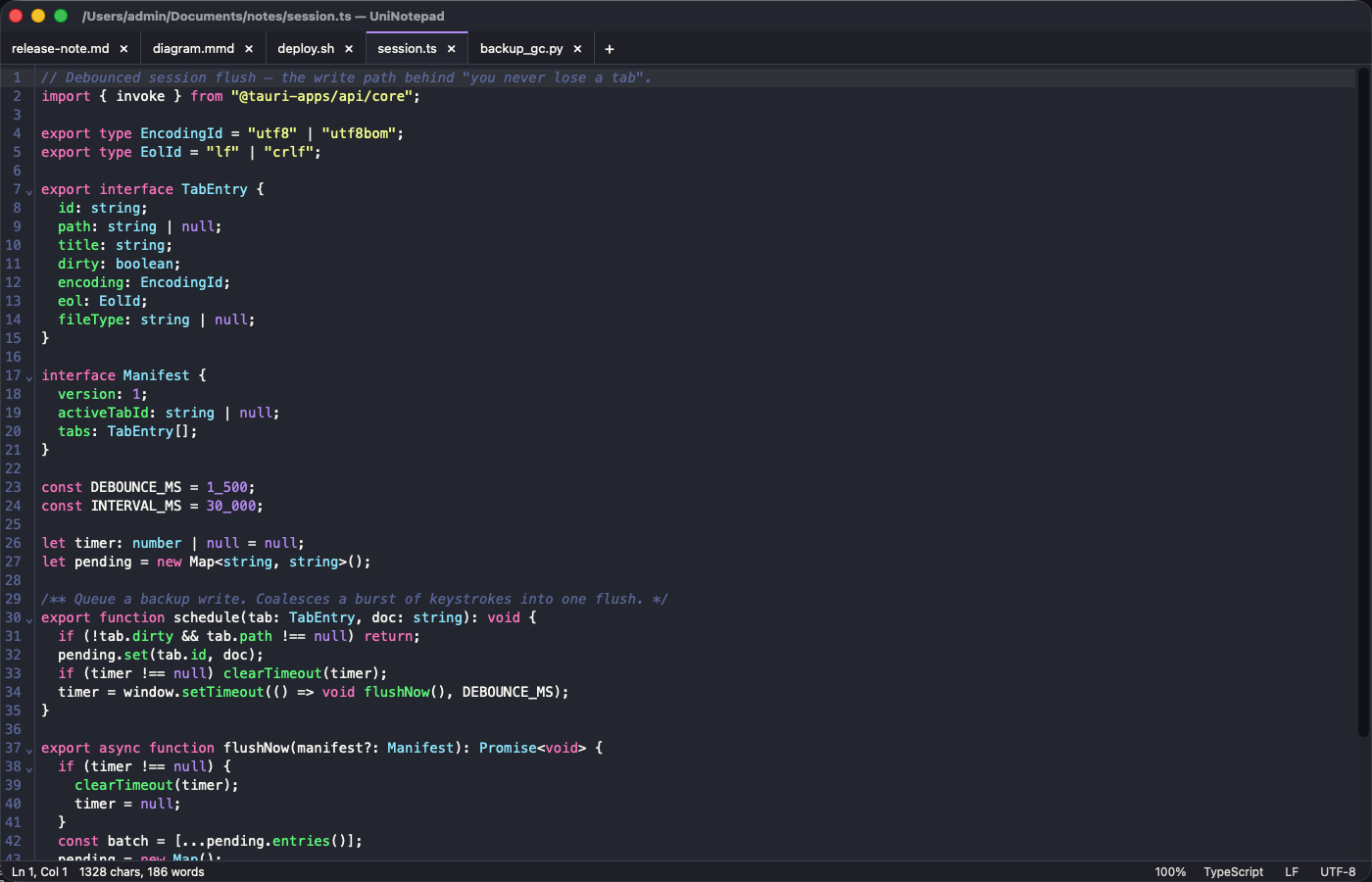
TypeScript syntax highlighting
TypeScript — types and generics included
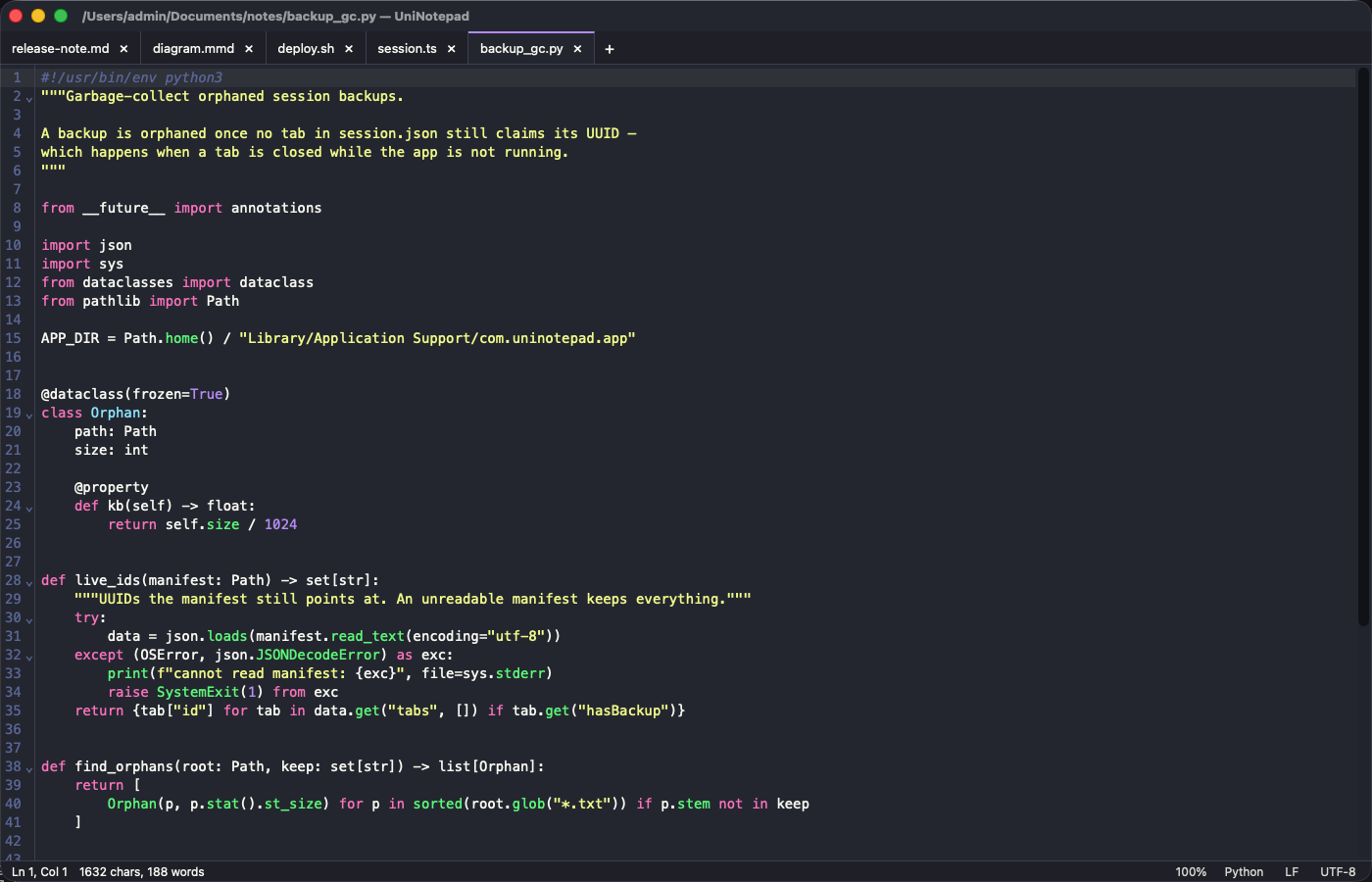
Python syntax highlighting
Python — docstrings and decorators
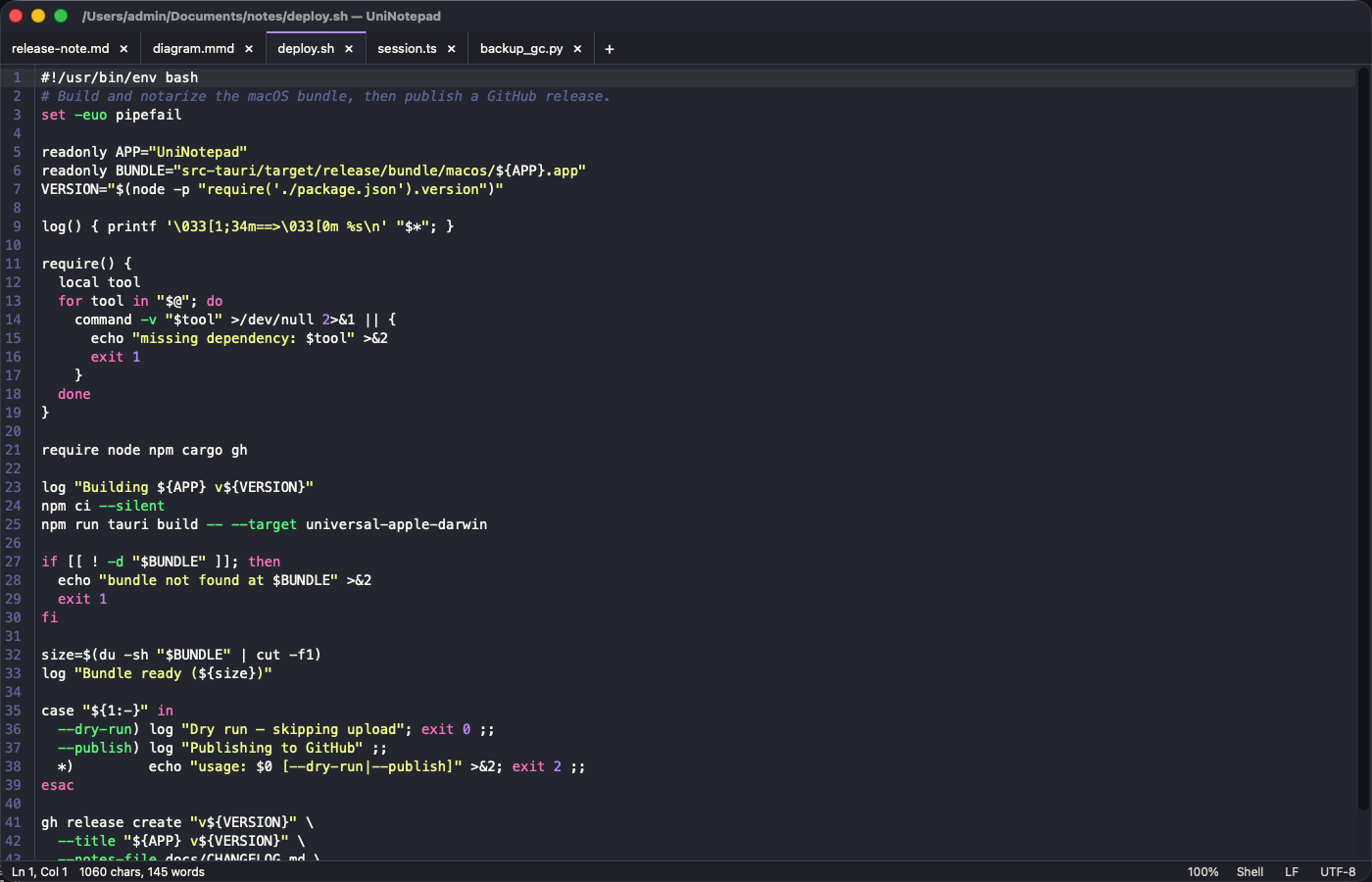
Bash syntax highlighting
Bash — shell scripts

❓ Frequently asked questions

I didn't save. Is my text really still there?

Yes. It is recorded 1.5 seconds after you stop typing, and again every time you switch tabs or close the window. Even if the machine loses power, nothing beyond the last second or two is gone.

Then what is the Save button for?

What the app keeps on its own is a working copy that only this app reads. To leave the content as a real file that other programs can open, you save it. Saving writes the whole file to a temporary one first and then swaps it into place in a single step, so the original survives even if the machine dies mid-save.

macOS says "UniNotepad is damaged and can't be opened"

The file is not damaged. This app is distributed without Apple Developer notarization, so that message is how macOS reports the quarantine attribute attached to anything downloaded from the internet. Don't move it to the Trash.

Move UniNotepad into your Applications folder, run the line below in Terminal, and open it again.

xattr -cr /Applications/UniNotepad.app

The full steps are in the macOS section under Download.

Can it open files saved in older encodings?

UTF-8 files open correctly whether or not they have a BOM. Korean files saved as "ANSI" by the classic Windows Notepad (EUC-KR/CP949) are detected and opened properly too. If one is misidentified, pick the encoding from the status bar and it is read again.

Older documents in Japanese (Shift-JIS) or Chinese (GBK, Big5) are detected the same way, and can likewise be re-read with an encoding you choose.

UTF-16 (LE/BE) files open and save as well, and if the current encoding can't represent a character in the document, you are warned before saving.

What if another program edits the file I'm working on?

UniNotepad notices while it is running — and on the next launch if it wasn't — and tells you the file changed. Your version always takes priority, so nothing is overwritten behind your back.